Pages

Showing posts with label googledrive. Show all posts

Friday, December 8, 2017

Google Drive Stream - all the files without the space

With unlimited file storage, fast search, straight forward collaboration and easy sharing, Google Drive is a great tool. However, there are some file types Google can’t read and so you need to continue using local applications (e.g., Microsoft, Photoshop, video editing, etc) to edit those files (which means downloading the file to your computer).

Google Drive recently announced Google Drive File Stream. If you’ve used Google’s Desktop Sync tool, then you’re already familiar with the concept: files stored in Google Drive are also available on your desktop (if you’re fine working through Google Drive on your browser then you don’t need to install Drive File Stream). With the new tool, instead of maintaining a copy on your desktop, Google will “stream” it to your computer when it’s needed. This means you can have access to all your files without actually storing them on your computer. However, as it is streaming from Google, you will need an internet connection to access the files, but you can also indicate which folders/files you want to maintain offline copies of for those times you don’t have internet access.

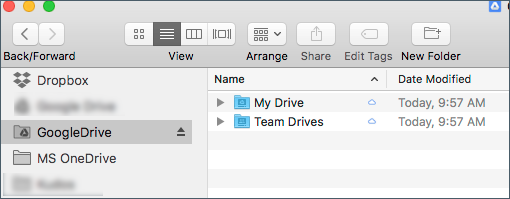
Installation is pretty easy — just download and run the installer (https://goo.gl/Ag1SVk) and Google will mount a new drive on your computer called Google Drive. This container acts like an external drive with all your Google data. Best part, you can access your regular Google Drive files as well as Team Drives — all in one location. And you will always have access to your files using your browser.


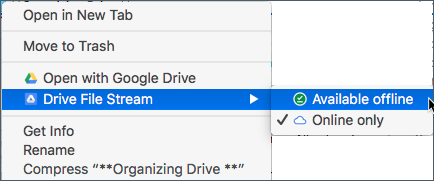
If there are files that you’d like to have stored on your computer, just right-click and mark it available offline.


Google Drive File Stream is only available for education and business Google accounts. Personal Gmail accounts can use Google’s new Backup and Sync solution (https://goo.gl/GLAqQT), although education/business accounts can also use it. Both products are intended to replace the old Desktop Sync application, which will stop functioning in March 2018.

Wednesday, August 16, 2017

Power Searching Google Drive

Google's superpower is search and to really narrow down on what you're looking for, it's important to be familiar with the advance search function.

Google indexes any file stored in Google Drive. Not only can you search for words in the title, but within the document itself. Using the advance search, you can pinpoint your results to a specific file type, owner or date.

By combining the URL Google Drive uses to display your search results with Google Chrome's search engine function, you can start a search from any page. In other words, you don't have to go to Google Drive first to enter your query.

Discover how easy it is to create custom search engines to search Google Drive.

Monday, April 20, 2015

When NOT to delete a shared folder/file

Turns out that removing a shared item may not be as simple as we thought. After a long discussion with Google Support, I realized many trainers (myself included) didn’t realize that although a shared document can only be deleted by the owner, it is possible for that document to be removed from it's folder and placed in limbo. The conditions under which this could happen and the solution provided by Google Support are in this document: http://goo.gl/DK2V6E

So, if someone has shared a folder, deleting a document from the folder will remove it for everyone (owner included). Although the owner still have access to it, it will not show up in the original shared folder or within his My Drive — the owner will have to search to find it.

Lesson: don’t delete files from folders - remove yourself from the Share list.

Monday, January 12, 2015

Storing Videos on Google Drive

For many schools and organizations, uploading videos to Youtube is not an option. However, Google Drive not only provides a storage location, it will also process videos and create streamed versions — just like the videos on Youtube. Although they do not include many of the functionalities associated with Youtube (comments, indexing, time stamps, etc) you can link to and embed the video streams.

Viewing

When you load a video to Drive, Google automatically creates a preview. Once the video has been processed, clicking on the video will take you to the streamed view. Click on the Share button and you can send the link for others to see.

Embedding

From the Shared view (not the preview), the More Actions provides an Embed option. Just copy and paste the code onto your site.

Formats and Captioning

Google Drive supports a number of common formats, including .mov, .mp4 and .avi (http://goo.gl/9Ce7hW). You can also add captions to your Google video (http://goo.gl/MNY4YD).


Update: Files stored in Google Drive are subject to bandwidth limitations (http://goo.gl/mRhp0j). A great solution for sharing videos to your class or school, if you expect high traffic you may want to look at another option.


Note: the video stream below is stored on Google Drive. Because of bandwidth limitations of Drive, if this video is not available, please use: http://youtu.be/QpSkPq_Kx-M.

Monday, April 14, 2014

Replacing PDFs with Google Documents

For years, PDFs were the preferred vehicle for creating documents that looked exactly the way you laid them out. Different browsers were notorious for reformatting text and layouts - you never knew exactly how things were going to be displayed. But PDFs bring their own challenges - it's a separate file you have to download, sometimes you need a different piece of software to view it, and it doesn't reformat itself for mobile devices.

As an alternative, take a look at Google Docs, the word processing app that's part of Google Drive. The power of these web based apps can allow you to create some beautiful looking documents with some great advantages:
  • they're web pages so no need to download a separate file
  • text will re-warp to fit your device (images may not always fit the window size0
  • you can easily update them
  • you can collaboratively work on keeping them up to date
  • you'll never lose the original document
Once you have your document looking the way you want, just go under the Share settings and make sure all users (or only those you want) can view the page!

Discover more about the share settings!

Tuesday, January 8, 2013

Using Google Presentations in a Hangout


Created January 8, 2013 by Trevor Beck and Ronnie Bincer

Using Presentations

Setup before starting your hangout

  1. From Google Drive (not the Google Drive for Hangouts tool) open your presentation document (typically will open in a new tab).
  2. Move new tab (Presentation) into a new browser window.
  3. Using the dropdown menu (Present) in the upper right, select “Present with Speaker Notes”.
  4. Resize the presentation window to remove any black bars (optional).

Once the hangout has started and you’re ready to give your presentation:

  1. Select Screenshare App from within the Hangout window.
  2. Select the presentation browser window to share.
  3. Bluebox yourself to keep your presentation window front even when others speak.
  4. Use the speaker notes window to drive the presentation forward by clicking on the thumbnail for the next slide.

Note: this will provide you with a browser window that will allow you to display your presentation, as well as open additional tabs to surf the web. Any tabs opened on this window will be viewable through the screenshare.


Tips:


  • you can adjust the size of the fonts for the speaker notes using the minus and plus signs at the top right of the Speaker Notes window. Or you can start the speaker notes at a larger size to begin with.
  • for a more focused presentation, you can present the window without tabs by selecting “Present in new window” first.
  • you can resize the slide window to a smaller size to give you more room on your desktop. Caution: this may slightly affect the displayed content size in the hangout.
  • if you add animation to objects or transitions between slides that are set to appear on click, you can click on the thumbnail in the speaker notes. Do not advance by using the slide numbers drop-down menu below the thumbnails.
  • your cursor will be visible to your audience (it’s a screenshare). Place your cursor away from the window if you don’t want it visible. (Could be a Bonus... for pointing to things in the live presentation... like a laser pointer). If you do utilize the pointer as part of the presentation, then use your Arrow Keys to advance the presentation.
  • if you are presenting by yourself through Hangouts on Air (HOA), your screenshare will automatically display at full screen (no filmstrip will be visible to your audience). If there are other participants in the HOA, you can achieve the same effect of full screen by video-muting the participants’ video thumbnails in the filmstrip (Cameraman technique).
  • remember to bluebox yourself/your screenshare so that others can talk without interrupting the display
  • participants using mobile devices will be able to view the screenshare - they cannot collaborate on documents within the Hangout.
  • remember not to use fast transitions for slides and objects (minimum of 2 seconds)
  • if using your mouse as a pointer, make it larger
    • Macs: System Preferences → Accessibility → Display
    • Windows: Control Panel → Hardware and Sound → Devices and Printers → Mouse

#hangouttips #hangouts #googledriveinhangouts

Associated videos:

  1. Google Drive Hangout App is NOT for Presentationshttp://www.youtube.com/watch?v=9Zgd8ZXYz10
  2. Using Google Presentations in a Hangout or HOAhttp://www.youtube.com/watch?v=SD-UqlC8CuI
  3. Summary with Q & A for Presentations in a Hangout or HOAhttp://www.youtube.com/watch?v=Jb4ljgq77lE

Thursday, January 3, 2013

The Google Drive Hangout App is NOT for Presentations

Discover the proper way to use the Hangout App for Google Drive

Using Google Drive Documents inside a Hangout has a lot of value, but it is not very useful if you are trying to do a presentation to a group within the hangout or to a group watching it from the outside. The main problem is everyone in the hangout can open up their own version of the document and may be at a different place than the ‘leader’ or ‘presenter’ is. We have some great ideas on how to utilize Google Drive docs as a presentation method which will be shown in our example HOA/video.

What the Hangout App called Google Drive is really quite useful for is online collaboration inside the hangout. Inside a hangout, you can have a virtual meeting where each party involved can brainstorm, discuss, etc. and get those thoughts into a shared document all at the same time in the same meeting.

If you're any kind of a power user of Google Docs (i.e. Google Drive), you know about the power of collaboration. Your document lives in "the cloud" (i.e. Google Drive) and is only available to you. However, by "sharing" your document, you can assign specific rights (view, comment or edit) to individuals. Now a group of people can work on a document together - either at the same time or at a time convenient for the individual (how to set up document sharing: http://goo.gl/DnLsg).

If you understand this, then it's easy to see the purpose of the Google Drive tool within Hangouts - it allows you to *edit* collaboratively within a Hangout. You basically see the same window, except it’s within the Hangout. With Google Drive for Hangouts (GDH), you choose from the files you have access to that you want to work on with the participants of your Hangout. Just like working on a document together from Google Drive (web app) you can see changes being made in real time *if you're both looking at the same page*. This is where the confusion comes in.

Let's assume we're both working on a Google word processing document in a Hangout. By default, it opens on the first page and as I make changes, you see it happen in real time. Same thing goes for a spreadsheet or presentation. However, we can actually work on different parts of the document at the same time. With word processing, I could be editing on page 2 while you’re adding new text on page 5. However, because the default view for both of us is page 1, we can’t see the edits happening.

This is why many people are confused about using the presentation tool. When GDH is loaded, we both see slide 1. Here again, we could both be working on different slides. However, you’ll also notice there’s no way to actually view it as a presentation within the Hangout - the purpose of GDH is to *edit* the document collaboratively.

So, is there a way to present a presentation? Yes there is and we’re working on instructions on how to do that and will be presenting that very soon.

#googledrive #hangouttips #hangouts #googledriveinhangouts #HOA