Pages

Showing posts with label video. Show all posts

Thursday, August 16, 2018

Digital farewell from beyond the grave

After my father passed away, any recordings of his voice became precious to me when I could no longer remember what he sounded like. I realized with all the technology available today, there was no reason my kids would have to share that experience. I wanted to find a way to leave some last words of comfort for them while at the same time make sure they had access to all my photos, videos, documents and passwords.

It all starts with with Google’s Inactive service (https://myaccount.google.com/inactive). Once your account has been inactive for a specified amount of time (for example, due to injury or death), Google will reach out to you via email and phone numbers you associate with your account. 
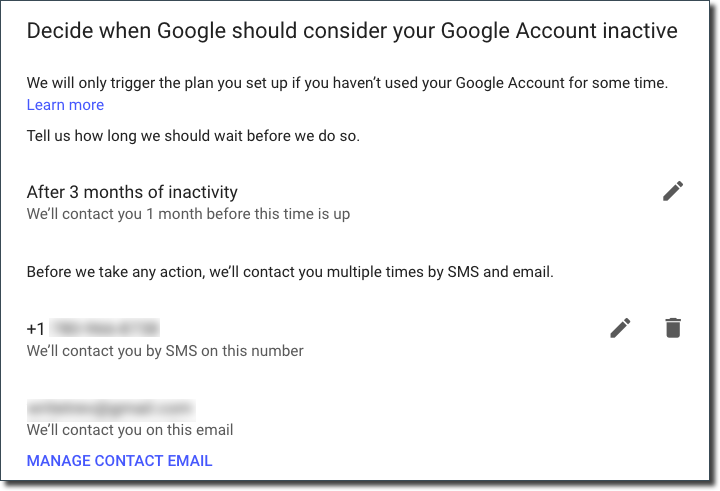


After no success, Google will then contact up to 10 people and give them access to the services (Photos, Gmail, etc.) you choose. You can also choose to have your account automatically deleted after the notifications have been sent.
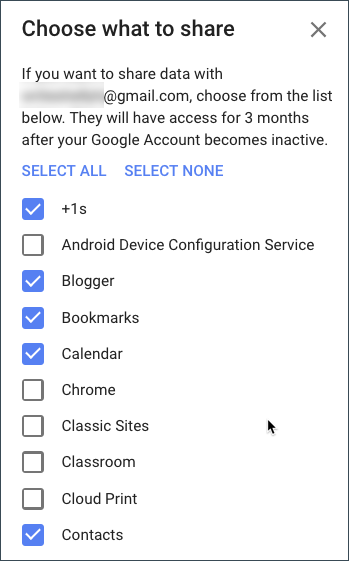


In addition to the message provided by Google, you can leave a customized message for each recipient. Knowing they will be 3 months into their grieving process, you can include words of comfort, advice and love. 


This message can also include special links to photos or videos and this is where the magic begins.

With online storage so readily available, it’s easy to find a place to store personal video messages. For me, I use Youtube. Anytime a major event happens in my life or I feel the need to leave some words for one of my kids, I take a few moments to record my thoughts and upload a video. Once uploaded, the videos are automatically added to a specific playlist based on the title. 


To ensure you have content for your playlist, put a yearly reminder in your calendar. In addition to a digital farewell, have a plan to pass on your passwords. 

Resources:
Instagram - Memorialization

Monday, January 12, 2015

Storing Videos on Google Drive

For many schools and organizations, uploading videos to Youtube is not an option. However, Google Drive not only provides a storage location, it will also process videos and create streamed versions — just like the videos on Youtube. Although they do not include many of the functionalities associated with Youtube (comments, indexing, time stamps, etc) you can link to and embed the video streams.

Viewing

When you load a video to Drive, Google automatically creates a preview. Once the video has been processed, clicking on the video will take you to the streamed view. Click on the Share button and you can send the link for others to see.

Embedding

From the Shared view (not the preview), the More Actions provides an Embed option. Just copy and paste the code onto your site.

Formats and Captioning

Google Drive supports a number of common formats, including .mov, .mp4 and .avi (http://goo.gl/9Ce7hW). You can also add captions to your Google video (http://goo.gl/MNY4YD).


Update: Files stored in Google Drive are subject to bandwidth limitations (http://goo.gl/mRhp0j). A great solution for sharing videos to your class or school, if you expect high traffic you may want to look at another option.


Note: the video stream below is stored on Google Drive. Because of bandwidth limitations of Drive, if this video is not available, please use: http://youtu.be/QpSkPq_Kx-M.

Friday, May 31, 2013

Add a Placeholder Video to your Hangout on Air's Event Page

As a new user to Google+, one thing that many people find confusing is that an Event page is not the actual Hangout on Air (HOA). I'll often see comments like "Where's the video?" on the event page 2 or 3 days before the actual event.

Many of these users expect the Event page to be like a television station - there's something always playing, but they're show will start at the advertised time. To help educate visitors, I created this video which I place in my Event's YouTube URL:


Now the visitors know to tune in at the scheduled time to see the live HOA.

Other things you could do:

  • create a "commercial" with your participants that will explain what they can expect when they tune in at the proper time
  • run a related video
  • run a cartoon or movie
  • run your favourite music video
If you want to create your own video, one of the easiest ways is to use YouTube's Slideshow tool. You can create slides in your favourite graphics editor (or PowerPoint), save them as files and upload them. (Tip: use music from YouTube's library so your video won't get pulled for infringement). Or create something in a movie editor and upload.

Easier still, just link to the video I created and paste it into your Event!