Pages

Thursday, August 16, 2018

Digital farewell from beyond the grave

After my father passed away, any recordings of his voice became precious to me when I could no longer remember what he sounded like. I realized with all the technology available today, there was no reason my kids would have to share that experience. I wanted to find a way to leave some last words of comfort for them while at the same time make sure they had access to all my photos, videos, documents and passwords.

It all starts with with Google’s Inactive service (https://myaccount.google.com/inactive). Once your account has been inactive for a specified amount of time (for example, due to injury or death), Google will reach out to you via email and phone numbers you associate with your account. 
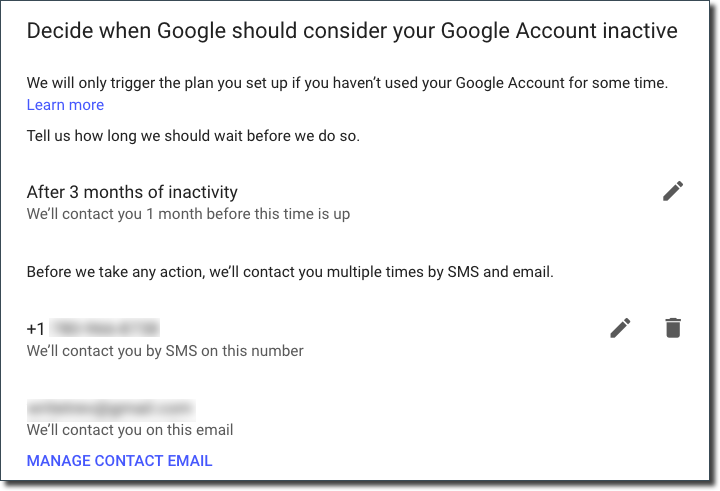


After no success, Google will then contact up to 10 people and give them access to the services (Photos, Gmail, etc.) you choose. You can also choose to have your account automatically deleted after the notifications have been sent.
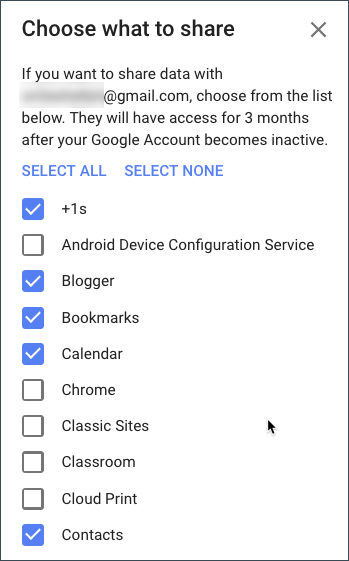


In addition to the message provided by Google, you can leave a customized message for each recipient. Knowing they will be 3 months into their grieving process, you can include words of comfort, advice and love. 


This message can also include special links to photos or videos and this is where the magic begins.

With online storage so readily available, it’s easy to find a place to store personal video messages. For me, I use Youtube. Anytime a major event happens in my life or I feel the need to leave some words for one of my kids, I take a few moments to record my thoughts and upload a video. Once uploaded, the videos are automatically added to a specific playlist based on the title


To ensure you have content for your playlist, put a yearly reminder in your calendar. In addition to a digital farewell, have a plan to pass on your passwords

Resources:
Instagram - Memorialization

Friday, December 8, 2017

Google Drive Stream - all the files without the space

With unlimited file storage, fast search, straight forward collaboration and easy sharing, Google Drive is a great tool. However, there are some file types Google can’t read and so you need to continue using local applications (e.g., Microsoft, Photoshop, video editing, etc) to edit those files (which means downloading the file to your computer).

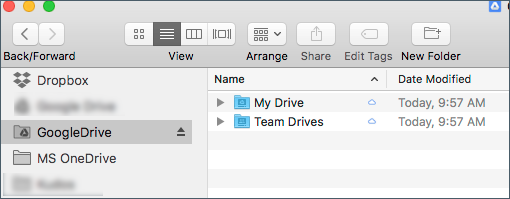
Google Drive recently announced Google Drive File Stream. If you’ve used Google’s Desktop Sync tool, then you’re already familiar with the concept: files stored in Google Drive are also available on your desktop (if you’re fine working through Google Drive on your browser then you don’t need to install Drive File Stream). With the new tool, instead of maintaining a copy on your desktop, Google will “stream” it to your computer when it’s needed. This means you can have access to all your files without actually storing them on your computer. However, as it is streaming from Google, you will need an internet connection to access the files, but you can also indicate which folders/files you want to maintain offline copies of for those times you don’t have internet access.

Installation is pretty easy — just download and run the installer (https://goo.gl/Ag1SVk) and Google will mount a new drive on your computer called Google Drive. This container acts like an external drive with all your Google data. Best part, you can access your regular Google Drive files as well as Team Drives — all in one location. And you will always have access to your files using your browser.


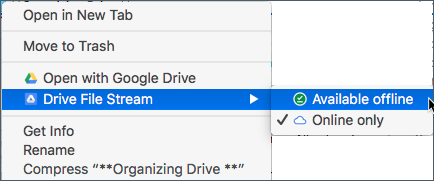
If there are files that you’d like to have stored on your computer, just right-click and mark it available offline.


Google Drive File Stream is only available for education and business Google accounts. Personal Gmail accounts can use Google’s new Backup and Sync solution (https://goo.gl/GLAqQT), although education/business accounts can also use it. Both products are intended to replace the old Desktop Sync application, which will stop functioning in March 2018.

Friday, December 1, 2017

The Google/Outlook Calendar Dating Game

When my university first moved to Outlook, one of the first things people asked was how they could see events from their personal Google calendar in their MacEwan Outlook calendar. So, we’re going to take a look at a few things:


  1. Show your work availability from Outlook to anyone (great for users outside of your domain)
  2. Share your Outlook events with details (to share with individuals or your personal Google calendar)
  3. View your personal Google calendar in Outlook.

You must use the web client to set this up. Sharing or publishing your calendar allows you to view the information — you can only make changes in the original calendar.


1. Share your availability with everyone
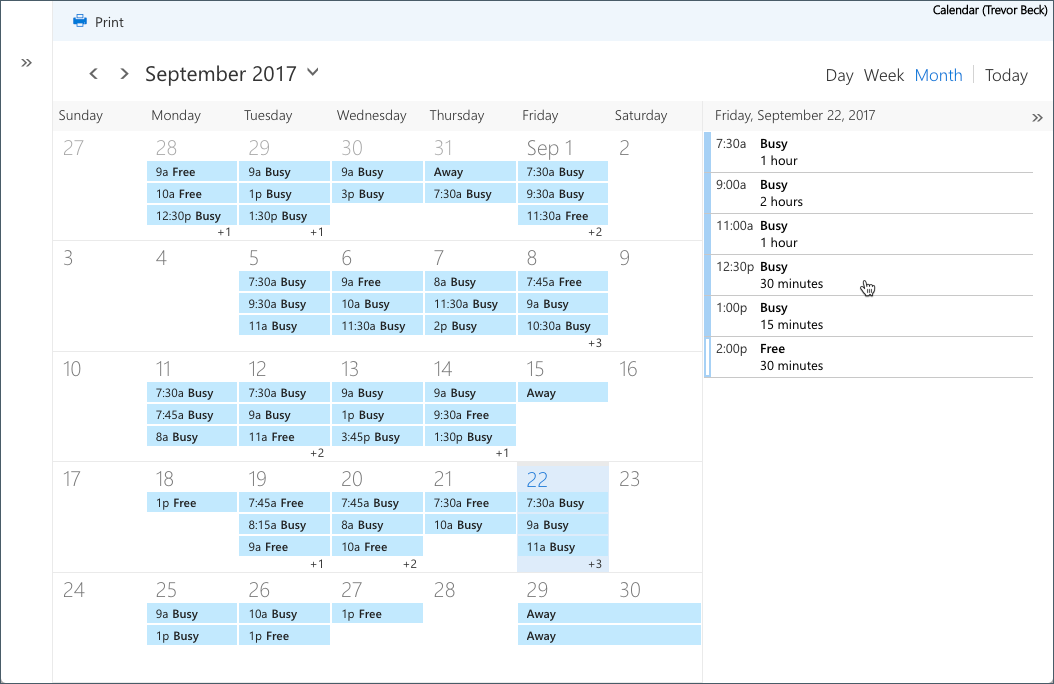
MacEwan Outlook users can use the Scheduling Assistant (https://goo.gl/AtxGQL) to see each other’s availability when booking a time. However, external users can’t do the same unless you publish your calendar. This will not only provide a html page with showing your busy/free times (no details), but a link to have the same information appear in your Google calendar.


To start:
  1. Login to http://outlook.com/yourdomain.
  2. In the top right, click on the Settings icon (i.e. gear) and go to Calendar - Shared calendars - Calendar publishing (https://goo.gl/A9bXWu).
  3. Select the calendar called Calendar (your personal calendar) and select Availability only for permissions. This will not display any details of your schedule.
  4. Save


You’ll now have 2 links:
  • HTML (generates a web page)
  • ICS (used by other calendar apps to subscribe to your schedule)


With the HTML link, users can view your schedule by Day, Week, or Month for any date.


To make this easy to access, add the link to the signature line in your email (you can use a link shortener like http://goo.gl). Here’s my signature:


Trevor Beck
Web Services, MacEwan University
See my availability: https://goo.gl/YKOyGl

2. Sharing the details of your schedule

Sometimes you have people you want to be able share the details of your calendar (e.g. your personal Google account, a colleague, your spouse). As you don’t want to change the sharing on your published page for everyone to see (as above), we will share the calendar with just the individual.


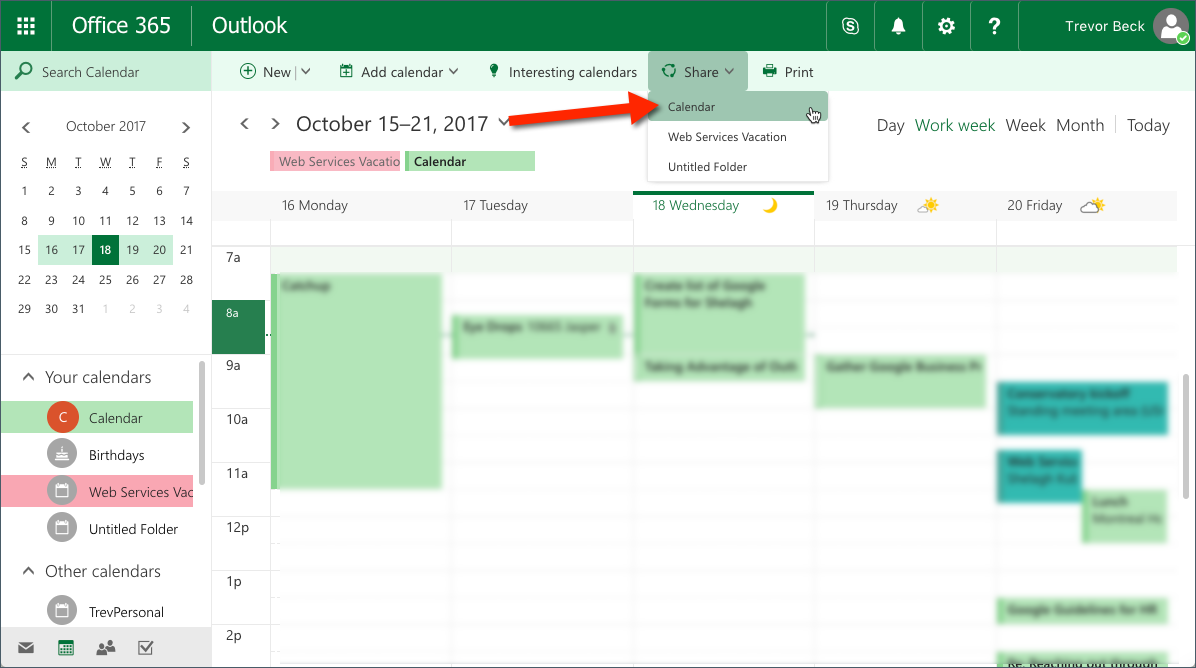
From the Calendar view, select Calendar (i.e. your MacEwan calendar) from the Share menu.


Here you can choose different individuals to to share your calendar with different levels of details. To share with my personal Google account:


  1. Enter personal email.
  2. Choose Can view titles and locations from the permissions.
  3. Click Share.


An email will be sent to that email with a link that will allow the user to subscribe to your schedule. If they pass that link on to someone else, the other users will also see your schedule.


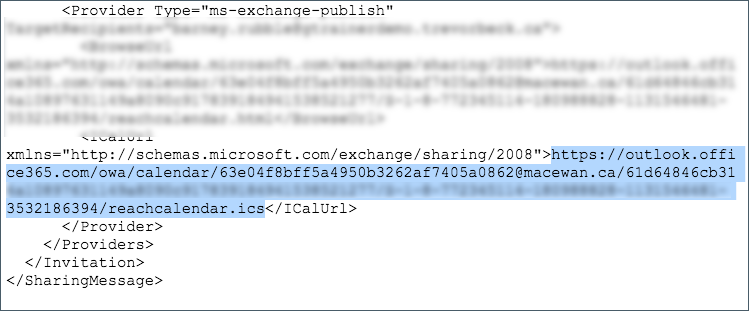
When you receive the email in your Gmail do not click on the Add this calendar button (this will prompt you to login to Outlook). Instead, click on the attached file (don’t download or add to your drive) for a preview of it’s contents. At the bottom you’ll find a link that starts with https and ends with .ics.


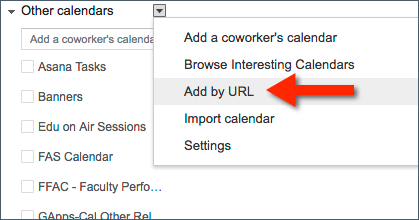
Copy the link and go to your Google Calendar. From the Other calendars list on the right, select Add by URL and paste in the link.


Your work calendar, with details, will now appear in Google Calendar under other calendars. You can use the settings to change the name and other preferences.


3. Add your personal Google Calendar to Outlook

Rather than repeat what’s already available, check out this handy tutorial from Microsoft:

Trevor Beck is a tech enthusiast whose training expands everything Mac, Google and is slowly making his way back to Microsoft.

Tuesday, September 19, 2017

Tutorial: Proper Filtering and Sorting using Filter Views

Data often gets corrupted when people improperly sort information so they can group items together. Discover how Filters and Filtered Views can temporarily hide and sort your data without destroying its integrity .


Wednesday, August 16, 2017

Power Searching Google Drive

Google's superpower is search and to really narrow down on what you're looking for, it's important to be familiar with the advance search function.

Google indexes any file stored in Google Drive. Not only can you search for words in the title, but within the document itself. Using the advance search, you can pinpoint your results to a specific file type, owner or date.

By combining the URL Google Drive uses to display your search results with Google Chrome's search engine function, you can start a search from any page. In other words, you don't have to go to Google Drive first to enter your query.

Discover how easy it is to create custom search engines to search Google Drive.

Tuesday, May 23, 2017

Tutorial - Create reports using the Query Function

Having Google Forms enter your information directly into a spreadsheet is a great time saver. And once it's there, you can easily filter and sort your data. However, too many times people will mess up their data when they only sort some of their columns - making the data invalid and useless.

Instead of manually sorting, you can use the QUERY function to do all the work for you, while automatically updating your data as new information comes in. Check out the video below on the details:

Monday, May 22, 2017

Import Data from One Spreadsheet to Another

With every new intake of trainers, the question always comes up about how to move data from one spreadsheet to another. For example, I have a sheet with information on grade 7, 8, 9 students in a master list, but I only want the Grade 7 student list to be available to the Grade 7 teachers.

ImportRange is one of the amazing functions available to us in Google Sheets. Think of it as a live import - always updating itself as the master sheet gets updated. You can't make any changes to the data (i.e., read-only), but you can still apply filters to the data.

Here's a video on how to use the ImportRange function to setup this process:


Monday, December 12, 2016

Hate the formatting in Google Groups?


One thing in desperate need of an update is the user interface in Google Groups for composing messages. However, a great solution is using Google Docs! Just draft your message and then copy/paste to Google Groups. Just be sure to use a standard font supported by Google Groups.

You can do the same with Gmail or use this handy Chrome extension:

Friday, June 3, 2016

No Projector in Your Meeting Room? Use Google Hangouts Screenshare!

Recently our Web Services department met to review web pages and some of the development work that was going on. This usually involves one of our designers sharing their screen on the large monitor or project. Unfortunately, this meeting room didn't have anything and people started spinning their laptop screens back and forth to show their work.

As I was on the other side of the table and didn't want to be walking back and forth, I realized we could do this just as easy with a Hangout Video Call! I quickly got everyone setup (Tip: Use Google Chrome to avoid needing to downloading a plugin), gave them the name of the Hangout "room" (feature only available to Google Apps for Education/Work) and had everyone start screen sharing. Be sure to mute microphones and cameras.

Although everyone is screen sharing, it won't necessarily show up on everyone's screen until someone selects "Present to Everyone".


Here's the trick: once you're done, just stop presenting (but not screen sharing)! It does 2 important things

  • allows the next person to present to the group
  • still keeps you screen sharing. This means you don't have to go back in and choose which screen/window to share, and you can quickly start presenting again


A couple of caveats:

  • if someone pins a user (i.e. clicks on the icon of a user in the filmstrip) that will override the presenter window
  • when you're still sharing, someone can pin your screen and still see what you're doing
Remember, with Hangouts you can have up to 25 people participating - and don't forget to take advantage of the built-in chat in your Hangout to pass URLs back and forth.

Monday, May 9, 2016

Fort McMurray Wildfire Evacuees Housing - using Google Apps.

As one of the many universities in Edmonton, MacEwan University was tasked with using available space in our student residence to house displaced families from Fort McMurray (at one point it was estimated that 60,000 would be making their way to/through Edmonton). To help organize some of our efforts, we developed 3 forms and a spreadsheet. Although we are not the largest institution, our staff took in over 1000 people in a single night. The staff was more concerned with getting families who had been on the road for over 48 hours into rooms as fast as possible, so the process of collecting information was not as exact as normal. 


Census Forms

The next day it was important to get an accurate number of the people and age groups in the building. Many people who initially registered with us had either invited others in or had given up our rooms. Rooms intended for a maximum of 6 people were housing 8 or 10. The plan was to go door to door to collect numbers and names of people. Understanding the evacuees were still tired and stressed, we decided to create 2 Google Forms to keep our interactions at a minimum.

The Short Census form would allow us to get an idea of the number of adults and kids. This information could be passed on to the different support services (e.g., food and clothing). The Long Census form gave us more detailed information about names and contact information which could be entered into a residence management system. Because typing on an iPad is rarely fast, and spelling of names/emails would be a challenge, we decided to let the evacuees fill this out themselves (most people had a smart phone). After collecting the Short Census information, volunteers gave evacuees a piece of paper with a link to the Long Census along with Red Cross information. 

Short Census Data

  • Room number (text field)
  • Name on file confirmed (Yes/No)
  • Name if not person on file (text field)
  • Number of Adults (1 - 10 Multiple choice with Other)
  • Number of kids 11 years and older (1 - 10 Multiple choice with Other)
  • Number of kids 10 years and under (1 - 10 Multiple choice with Other)
  • Registred at Red Cross (Yes/No) 

Long Census Data

  • Room Number (text field)
  • Names of all guests (paragraph)
  • Email address (text field with validation)
  • Cell phone (text field with validation)

Volunteer Form

I saw a lot of emails messages asking for volunteers before I was invited in on the project. Once we got the Google Form up and running, it was a lot easier to collect the information. As people indicated the shifts they would be available, the coordinator review and assign them to shifts in the spreadsheet, and use formMule to send our confirmation messages. Restaurant Lists

Edmonton has been known as the City of Champions for a number of years and one of the big reasons is the support that comes out during times of crises. Restaurants throughout the city are providing free meals for displaced families. To assist us in keeping our board up to date, we created a spreadsheet of the local (i.e. walking distance) restaurants. This provides us with a single list that we can use everyday to call and confirm the offers are still available and ensure we only call them once (multiple people were using the list). 

Take Aways/Tips

In web design there’s a saying: “Don’t make them think.” Although we could create all sorts of beautifully designed forms and spreadsheets, it’s important to remember that “Done is better than perfect or pretty” and everyone is already under enough stress.. So here are a few things you should consider: 

  • With Google Forms, use Multiple Choice fields instead of Lists. Yes, all the choices are displayed on the page and take up a lot of room, but when filling out on a mobile device the user just has to move down the page (i.e., push up) to see the choices. 
  • Use a larger font. Not pretty, but easier to read on the screen and easier to choose items from lists
  • Don’t expect add-ons for Google Apps to always work properly. Your users should be prepared to process things manually should something go wrong. This is extremely important with non-technical users.
  • Don’t force Google Apps solutions on people. Yes, organizing spreadsheets is much easier than using paper and pen for managing lists, but these people are under enough pressure. If it’s working and getting the job done, let it go. You can always circle back to it during the debriefing sessions. 

Last Note

Many of these people have not only lost their homes, but potentially their source of employment. If you’d like to help out, please donate to the Red Cross by visiting www.redcross.ca/alberta.

Saturday, April 16, 2016

Using Google Forms to Populate Users in a Domain

Quickly bulk load users to for created Google accounts on your domain, this tutorial show you how to use Google Forms to collect the names and automatically create emails and passwords.

Friday, April 15, 2016

Google Photo Spheres in your Google Photos

Google Photo Spheres are a great way to get a 360 view of a location. Armed with my iPhone and the Street View app, I've been collecting different locations for a few years (https://goo.gl/GIfgTC). When I make them public and assign a location to them, they'll show up in Google Maps for that location as well as that location's Google Business Page.

On my last trip to Panama I noticed  my photos spheres were showing along with the photos automatically uploaded from my phone through the Google Photos app. However, when you're looking at the sphere's in an album view, they show up warped and weird (i.e. flattened). Then I discovered the trick - click on the image. Photos appear in a large format and *photo spheres load up*! Now I can see the 360 effect from within my photo album.

Here's an album that contains some photos as well as spheres. Remember, click on the spheres to get the full effect!

https://goo.gl/c0pPf2


Wednesday, April 6, 2016

Similar to the SPLIT function, you can quickly split your data into different columns right after you paste in your text or do it to existing data by going Data > Split text to columns.


Read more about it: http://goo.gl/PelVU0

Wednesday, January 27, 2016

Reminder Messages with Google Calendars

One question that's often asked is about sending calendar event reminders to participants. While Google Calendar doesn't actually do this, you can use the event's notifications to help you out.

When setting up notifications (which only applies to me - they're MY notifications), I create three notifications for important meetings:


  1. Notification meeting's starting in 15 minutes
  2. Notification meeting's starting 5 hours
  3. Notification meeting's starting in two days

The 15 minute notification is for me to get to the meeting; the other two are notices to send reminder messages to the attendees. You can do that in a couple of ways. Using Gmail from your browser, just open the event and right above the guest list you'll see a link to email guests:


The link is also available in Google Calendar:


Once you've clicked on the link, you can quickly send a reminder out:


Monday, January 25, 2016

Why PDFs suck

For the longest time, PDFs (Portable Document Format) were the best way to reproduce your art/design in a way that was consistent across all computer platforms. It allowed users to take the work invested in the design for printing posters, magazines, etc. and turn them into a digital format that could be downloaded. However, viewing PDFs on a mobile device just plain sucks. Using tools like Google Apps to replace PDFs has a number of advantages:
  • Documents created in Google Apps are not downloaded but available online.
  • Documents can be viewed on and sized for any device (i.e. desktop/mobile).
  • Changes are immediately visible. 

Viewing
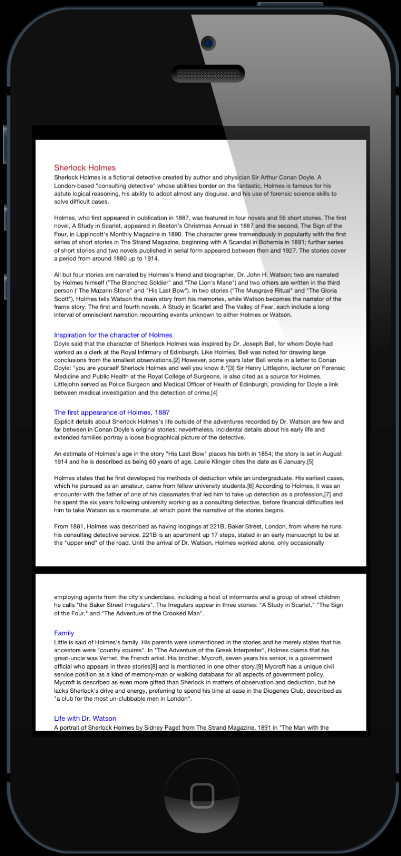
To view a PDF, it must first be downloaded to your device, and then displayed on your screen. Your mobile device treats a PDF like an image — displaying the whole page on the screen.

Here’s an example of a PDF on a mobile device:

A PDF - can you read this?


Because your mobile device displays the whole page, you have to zoom in and then swipe left to read the text that’s off-screen. By the time you get to the second line, you’ve lost interested in trying to read the document.

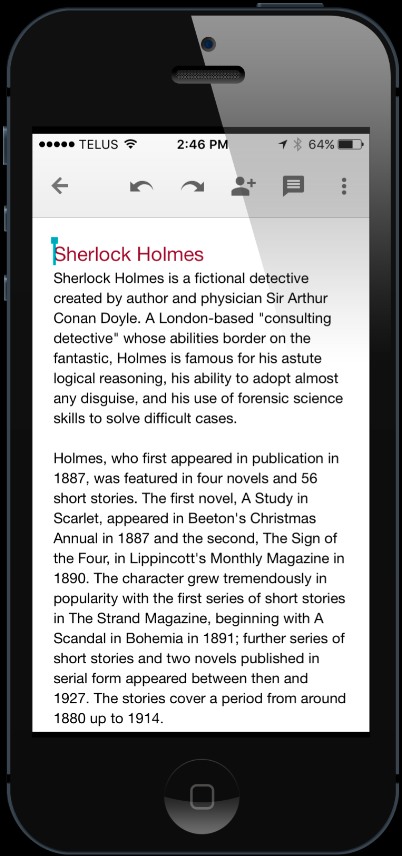
Now let’s look at a Google Doc:


Notice where the first line ends on each view. The text automatically wraps to the width of the device. Google Docs (part of the Google Apps suite of Docs, Sheets and Slides) are basically fancy web pages; the user only needs to swipe up in order to read the page (just like a web page).

Updating Files

Ever received a PDF in your mail only to have a second one sent a few minutes later with a correction? As soon as you send a PDF, you now have 2 copies — the original and the one on your device. When a change is made to the original, the file on your device becomes out of date.

With Google Apps, updates are instantaneous. When a user needs that information, they just visit that page (i.e. the Google document). And like a web page, it’s easy to update the information without having to send out an email with a second attachment. Users never have to wonder which version on their computer is the most recent. Instead, they visit the link to display the most up to date information. And by taking advantage of Google’s collaboration tools, it’s easy for a number of users to make changes.


Not Just for Text
Google Docs is a great tool for creating online newsletters or assignments, but Google Apps also includes Sheets and Slides. Now your spreadsheets and presentations can be made available online and any changes you make are automatically updated. Just remember to ensure your viewers have View Only access.

So, the next time you go to launch Microsoft Office to start creating a PDF, use Google Apps instead.


Monday, January 18, 2016

Google Docs Voice Typing is Your Personal Dictation Assistant

I hate doing other people's typing so when I send out a PDF for review, I ask users to type in their comments so I can just copy/paste text to update. So, when I get someone who prints, writes out their comments, scans and sends me the document, I'm a bit annoyed. 

Then I remembered Voice Typing in Google Docs! Just fire it up, read the paragraphs out-loud and typing done! Saves time, money and stress.

Note: mobile users can use the built-in dictation tools of their operating system.

https://goo.gl/tXff6z

#dictation   #ttips   #voicedictation  

Sunday, September 13, 2015

Should you work offline with a Chromebook?

I recently purchased an Acer Chromebook 11 and things were running fast and great, but then not so much. I tried reducing the number of extensions, but still not so much. Then I read this article (http://goo.gl/Cu4ARs) and here's the trick that worked:

Don't have your files available offline.

Your Chromebook will spend valuable time and resources making sure everything is syncing and up to date. I'm rarely without a connection, so I'm not so concerned about this (and the couple of files that I might need I can individually make available offline on my iPad).

I'm bad for having a lots of tabs open as well. When I move from one tab to another, they reload when they should already be displaying the content. Another trick I've found that seems to help is add extra swamp memory (http://goo.gl/G9QiC). So far, that seems to be helping.

What's your favorite trick?

Wednesday, August 26, 2015

Create Dynamic Dropdown Menus in Google Sheets

Google Sheets is a great tool for tracking and entering data. The Validation command allows us to create a dropdown menu for people to choose from, which helps with consitency. But what if you don't know what the choices are going to be?

By using the UNIQUE function, you can create dropdown menus that automatically updated based on what users are entering. That way, our users can choose items based on previous entries or add a new item that will automatically update our list.


Tuesday, August 11, 2015

Easy Start to Google Hangouts

As part of the Google Apps suite of tools, MacEwan University has access to Google Hangouts. Think of Hangouts as conversations - you can carry on a conversation through text (like different messenger apps), through audio (like a telephone) or video (like Skype). Best of all, if you’re using Chrome, they’re all easily available through your browser - you don’t need to run a separate app or download any plugins.

If you’re using Google Chrome, I recommend downloading the Google Hangouts extension (https://goo.gl/JXPtm). This places a button at the top of your window that will allow you to start a Hangout. It will also listen for an invitation to Hangouts and open the conversation window. As this is a Chrome extension, Chrome must be running for this to work.

Here’s a quick video (https://goo.gl/mUoIQq) that explains the installation process and what you can do with it. Although I didn't mention it in the video, you can also use Hangouts to make free calls to phone numbers in Canada and the United States.

For information on Hangouts visit Google’s Help Centre: https://goo.gl/0p3Uzw.


Monday, April 20, 2015

When NOT to delete a shared folder/file

Turns out that removing a shared item may not be as simple as we thought. After a long discussion with Google Support, I realized many trainers (myself included) didn’t realize that although a shared document can only be deleted by the owner, it is possible for that document to be removed from it's folder and placed in limbo. The conditions under which this could happen and the solution provided by Google Support are in this document: http://goo.gl/DK2V6E

So, if someone has shared a folder, deleting a document from the folder will remove it for everyone (owner included). Although the owner still have access to it, it will not show up in the original shared folder or within his My Drive — the owner will have to search to find it.

Lesson: don’t delete files from folders - remove yourself from the Share list.