Similar to the SPLIT function, you can quickly split your data into different columns right after you paste in your text or do it to existing data by going Data > Split text to columns.
One question that's often asked is about sending calendar event reminders to participants. While Google Calendar doesn't actually do this, you can use the event's notifications to help you out.
When setting up notifications (which only applies to me - they're MY notifications), I create three notifications for important meetings:
Notification meeting's starting in 15 minutes
Notification meeting's starting 5 hours
Notification meeting's starting in two days
The 15 minute notification is for me to get to the meeting; the other two are notices to send reminder messages to the attendees. You can do that in a couple of ways. Using Gmail from your browser, just open the event and right above the guest list you'll see a link to email guests:
The link is also available in Google Calendar:
Once you've clicked on the link, you can quickly send a reminder out:
For the longest time, PDFs (Portable Document Format) were the best way to reproduce your art/design in a way that was consistent across all computer platforms. It allowed users to take the work invested in the design for printing posters, magazines, etc. and turn them into a digital format that could be downloaded. However, viewing PDFs on a mobile device just plain sucks. Using tools like Google Apps to replace PDFs has a number of advantages:
Documents created in Google Apps are not downloaded but available online.
Documents can be viewed on and sized for any device (i.e. desktop/mobile).
Changes are immediately visible.
Viewing
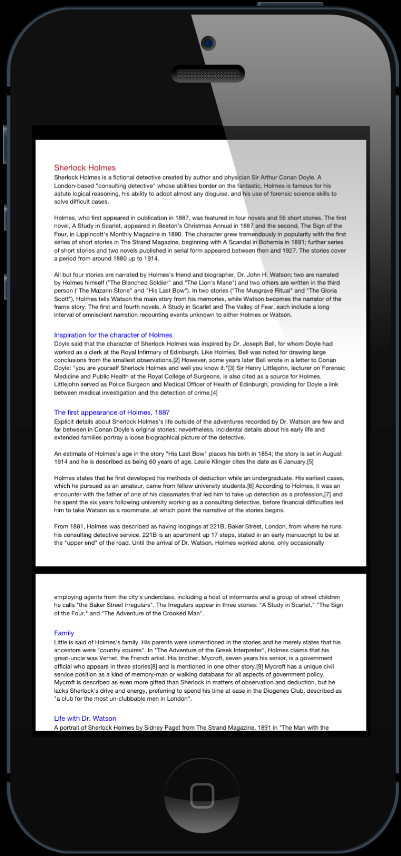
To view a PDF, it must first be downloaded to your device, and then displayed on your screen. Your mobile device treats a PDF like an image — displaying the whole page on the screen.
Here’s an example of a PDF on a mobile device:
A PDF - can you read this?
Because your mobile device displays the whole page, you have to zoom in and then swipe left to read the text that’s off-screen. By the time you get to the second line, you’ve lost interested in trying to read the document.
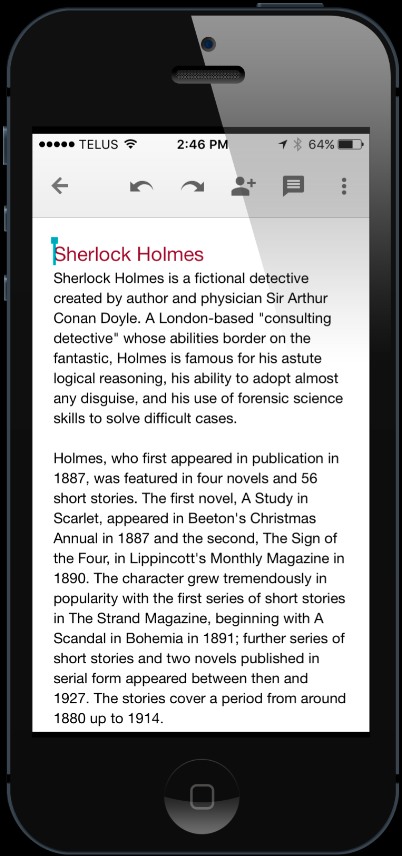
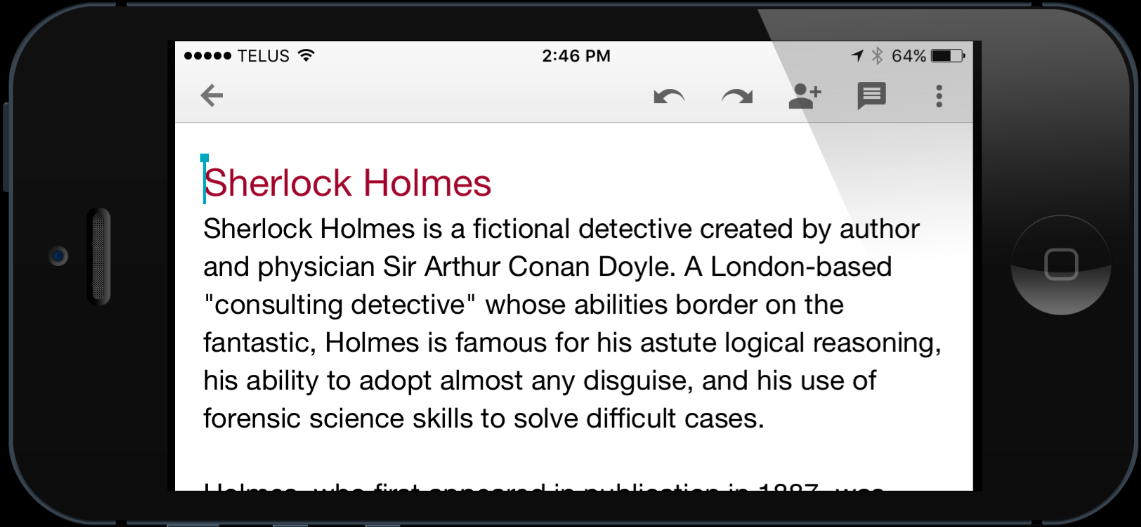
Now let’s look at a Google Doc:
Notice where the first line ends on each view. The text automatically wraps to the width of the device. Google Docs (part of the Google Apps suite of Docs, Sheets and Slides) are basically fancy web pages; the user only needs to swipe up in order to read the page (just like a web page).
Updating Files
Ever received a PDF in your mail only to have a second one sent a few minutes later with a correction? As soon as you send a PDF, you now have 2 copies — the original and the one on your device. When a change is made to the original, the file on your device becomes out of date.
With Google Apps, updates are instantaneous. When a user needs that information, they just visit that page (i.e. the Google document). And like a web page, it’s easy to update the information without having to send out an email with a second attachment. Users never have to wonder which version on their computer is the most recent. Instead, they visit the link to display the most up to date information. And by taking advantage of Google’s collaboration tools, it’s easy for a number of users to make changes.
Not Just for Text
Google Docs is a great tool for creating online newsletters or assignments, but Google Apps also includes Sheets and Slides. Now your spreadsheets and presentations can be made available online and any changes you make are automatically updated. Just remember to ensure your viewers have View Only access.
So, the next time you go to launch Microsoft Office to start creating a PDF, use Google Apps instead.
I hate doing other people's typing so when I send out a PDF for review, I ask users to type in their comments so I can just copy/paste text to update. So, when I get someone who prints, writes out their comments, scans and sends me the document, I'm a bit annoyed.
Then I remembered Voice Typing in Google Docs! Just fire it up, read the paragraphs out-loud and typing done! Saves time, money and stress.
Note: mobile users can use the built-in dictation tools of their operating system.
I recently purchased an Acer Chromebook 11 and things were running fast and great, but then not so much. I tried reducing the number of extensions, but still not so much. Then I read this article (http://goo.gl/Cu4ARs) and here's the trick that worked:
Don't have your files available offline.
Your Chromebook will spend valuable time and resources making sure everything is syncing and up to date. I'm rarely without a connection, so I'm not so concerned about this (and the couple of files that I might need I can individually make available offline on my iPad).
I'm bad for having a lots of tabs open as well. When I move from one tab to another, they reload when they should already be displaying the content. Another trick I've found that seems to help is add extra swamp memory (http://goo.gl/G9QiC). So far, that seems to be helping.
Google Sheets is a great tool for tracking and entering data. The Validation command allows us to create a dropdown menu for people to choose from, which helps with consitency. But what if you don't know what the choices are going to be?
By using the UNIQUE function, you can create dropdown menus that automatically updated based on what users are entering. That way, our users can choose items based on previous entries or add a new item that will automatically update our list.
As part of the Google Apps suite of tools, MacEwan University has access to Google Hangouts. Think of Hangouts as conversations - you can carry on a conversation through text (like different messenger apps), through audio (like a telephone) or video (like Skype). Best of all, if you’re using Chrome, they’re all easily available through your browser - you don’t need to run a separate app or download any plugins.
If you’re using Google Chrome, I recommend downloading the Google Hangouts extension (https://goo.gl/JXPtm). This places a button at the top of your window that will allow you to start a Hangout. It will also listen for an invitation to Hangouts and open the conversation window. As this is a Chrome extension, Chrome must be running for this to work.
Here’s a quick video (https://goo.gl/mUoIQq) that explains the installation process and what you can do with it. Although I didn't mention it in the video, you can also use Hangouts to make free calls to phone numbers in Canada and the United States.


 I hate doing other people's typing so when I send out a PDF for review, I ask users to type in their comments so I can just copy/paste text to update. So, when I get someone who prints, writes out their comments, scans and sends me the document, I'm a bit annoyed.

