Quickly bulk load users to for created Google accounts on your domain, this tutorial show you how to use Google Forms to collect the names and automatically create emails and passwords.
Saturday, April 16, 2016


Friday, April 15, 2016
Google Photo Spheres in your Google Photos
Google Photo Spheres are a great way to get a 360 view of a location. Armed with my iPhone and the Street View app, I've been collecting different locations for a few years (https://goo.gl/GIfgTC). When I make them public and assign a location to them, they'll show up in Google Maps for that location as well as that location's Google Business Page.
On my last trip to Panama I noticed my photos spheres were showing along with the photos automatically uploaded from my phone through the Google Photos app. However, when you're looking at the sphere's in an album view, they show up warped and weird (i.e. flattened). Then I discovered the trick - click on the image. Photos appear in a large format and *photo spheres load up*! Now I can see the 360 effect from within my photo album.
Here's an album that contains some photos as well as spheres. Remember, click on the spheres to get the full effect!
https://goo.gl/c0pPf2
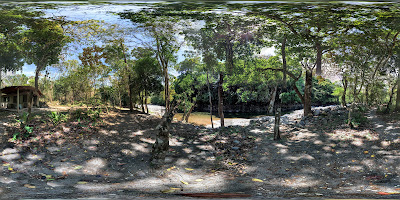
On my last trip to Panama I noticed my photos spheres were showing along with the photos automatically uploaded from my phone through the Google Photos app. However, when you're looking at the sphere's in an album view, they show up warped and weird (i.e. flattened). Then I discovered the trick - click on the image. Photos appear in a large format and *photo spheres load up*! Now I can see the 360 effect from within my photo album.
Here's an album that contains some photos as well as spheres. Remember, click on the spheres to get the full effect!
https://goo.gl/c0pPf2

Wednesday, April 6, 2016
Similar to the SPLIT function, you can quickly split your data into different columns right after you paste in your text or do it to existing data by going Data > Split text to columns.

Read more about it: http://goo.gl/PelVU0
Wednesday, January 27, 2016
Reminder Messages with Google Calendars
One question that's often asked is about sending calendar event reminders to participants. While Google Calendar doesn't actually do this, you can use the event's notifications to help you out.
When setting up notifications (which only applies to me - they're MY notifications), I create three notifications for important meetings:


When setting up notifications (which only applies to me - they're MY notifications), I create three notifications for important meetings:
- Notification meeting's starting in 15 minutes
- Notification meeting's starting 5 hours
- Notification meeting's starting in two days

The 15 minute notification is for me to get to the meeting; the other two are notices to send reminder messages to the attendees. You can do that in a couple of ways. Using Gmail from your browser, just open the event and right above the guest list you'll see a link to email guests:
The link is also available in Google Calendar:

Once you've clicked on the link, you can quickly send a reminder out:

Monday, January 25, 2016
Why PDFs suck
For the longest time, PDFs (Portable Document Format) were the best way to reproduce your art/design in a way that was consistent across all computer platforms. It allowed users to take the work invested in the design for printing posters, magazines, etc. and turn them into a digital format that could be downloaded. However, viewing PDFs on a mobile device just plain sucks. Using tools like Google Apps to replace PDFs has a number of advantages:
Viewing
To view a PDF, it must first be downloaded to your device, and then displayed on your screen. Your mobile device treats a PDF like an image — displaying the whole page on the screen.
Here’s an example of a PDF on a mobile device:
Because your mobile device displays the whole page, you have to zoom in and then swipe left to read the text that’s off-screen. By the time you get to the second line, you’ve lost interested in trying to read the document.
Now let’s look at a Google Doc:
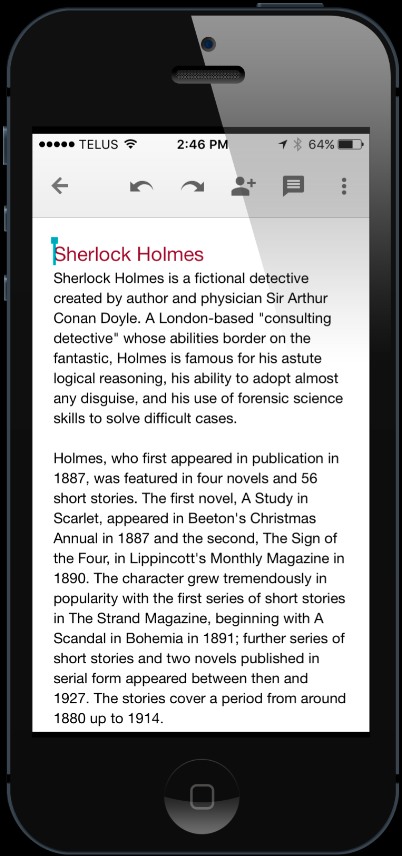
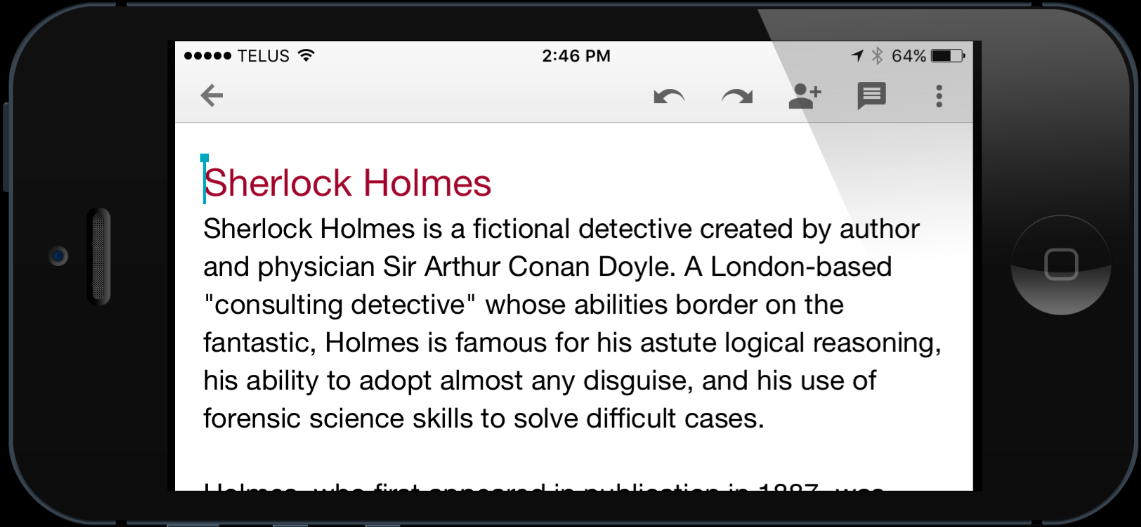
Notice where the first line ends on each view. The text automatically wraps to the width of the device. Google Docs (part of the Google Apps suite of Docs, Sheets and Slides) are basically fancy web pages; the user only needs to swipe up in order to read the page (just like a web page).
Ever received a PDF in your mail only to have a second one sent a few minutes later with a correction? As soon as you send a PDF, you now have 2 copies — the original and the one on your device. When a change is made to the original, the file on your device becomes out of date.
With Google Apps, updates are instantaneous. When a user needs that information, they just visit that page (i.e. the Google document). And like a web page, it’s easy to update the information without having to send out an email with a second attachment. Users never have to wonder which version on their computer is the most recent. Instead, they visit the link to display the most up to date information. And by taking advantage of Google’s collaboration tools, it’s easy for a number of users to make changes.
Not Just for Text
Google Docs is a great tool for creating online newsletters or assignments, but Google Apps also includes Sheets and Slides. Now your spreadsheets and presentations can be made available online and any changes you make are automatically updated. Just remember to ensure your viewers have View Only access.
So, the next time you go to launch Microsoft Office to start creating a PDF, use Google Apps instead.
- Documents created in Google Apps are not downloaded but available online.
- Documents can be viewed on and sized for any device (i.e. desktop/mobile).
- Changes are immediately visible.
To view a PDF, it must first be downloaded to your device, and then displayed on your screen. Your mobile device treats a PDF like an image — displaying the whole page on the screen.
Here’s an example of a PDF on a mobile device:
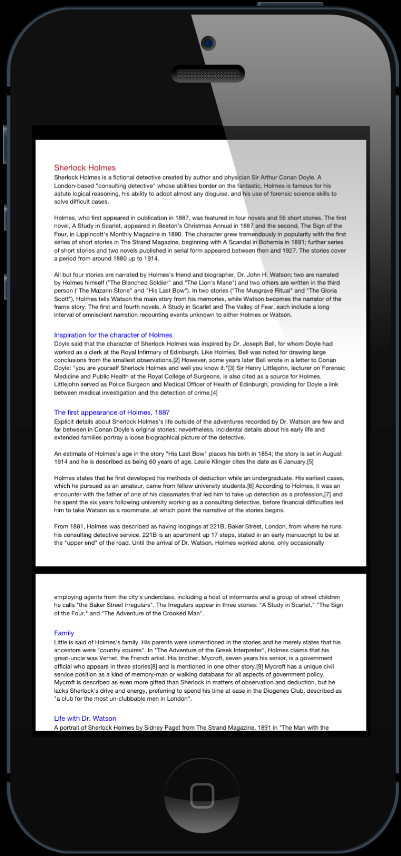 |
| A PDF - can you read this? |
Because your mobile device displays the whole page, you have to zoom in and then swipe left to read the text that’s off-screen. By the time you get to the second line, you’ve lost interested in trying to read the document.
Now let’s look at a Google Doc:
Notice where the first line ends on each view. The text automatically wraps to the width of the device. Google Docs (part of the Google Apps suite of Docs, Sheets and Slides) are basically fancy web pages; the user only needs to swipe up in order to read the page (just like a web page).
Updating Files
With Google Apps, updates are instantaneous. When a user needs that information, they just visit that page (i.e. the Google document). And like a web page, it’s easy to update the information without having to send out an email with a second attachment. Users never have to wonder which version on their computer is the most recent. Instead, they visit the link to display the most up to date information. And by taking advantage of Google’s collaboration tools, it’s easy for a number of users to make changes.
Not Just for Text
So, the next time you go to launch Microsoft Office to start creating a PDF, use Google Apps instead.
Monday, January 18, 2016
Google Docs Voice Typing is Your Personal Dictation Assistant
 I hate doing other people's typing so when I send out a PDF for review, I ask users to type in their comments so I can just copy/paste text to update. So, when I get someone who prints, writes out their comments, scans and sends me the document, I'm a bit annoyed.
 Then I remembered Voice Typing in Google Docs! Just fire it up, read the paragraphs out-loud and typing done! Saves time, money and stress.
Note: mobile users can use the built-in dictation tools of their operating system.
https://goo.gl/tXff6z
#dictation #ttips #voicedictation
Sunday, September 13, 2015
Should you work offline with a Chromebook?

Don't have your files available offline.
Your Chromebook will spend valuable time and resources making sure everything is syncing and up to date. I'm rarely without a connection, so I'm not so concerned about this (and the couple of files that I might need I can individually make available offline on my iPad).
I'm bad for having a lots of tabs open as well. When I move from one tab to another, they reload when they should already be displaying the content. Another trick I've found that seems to help is add extra swamp memory (http://goo.gl/G9QiC). So far, that seems to be helping.
What's your favorite trick?
Subscribe to:
Posts (Atom)